How to Hide Your Caller ID on iPhone (iOS 26, 18 and Older)
The exact Settings path to turn off Show My Caller ID on every iOS version, what to do when it's greyed out, per-call codes, and the cases where your number still shows.
On this page (9 sections)
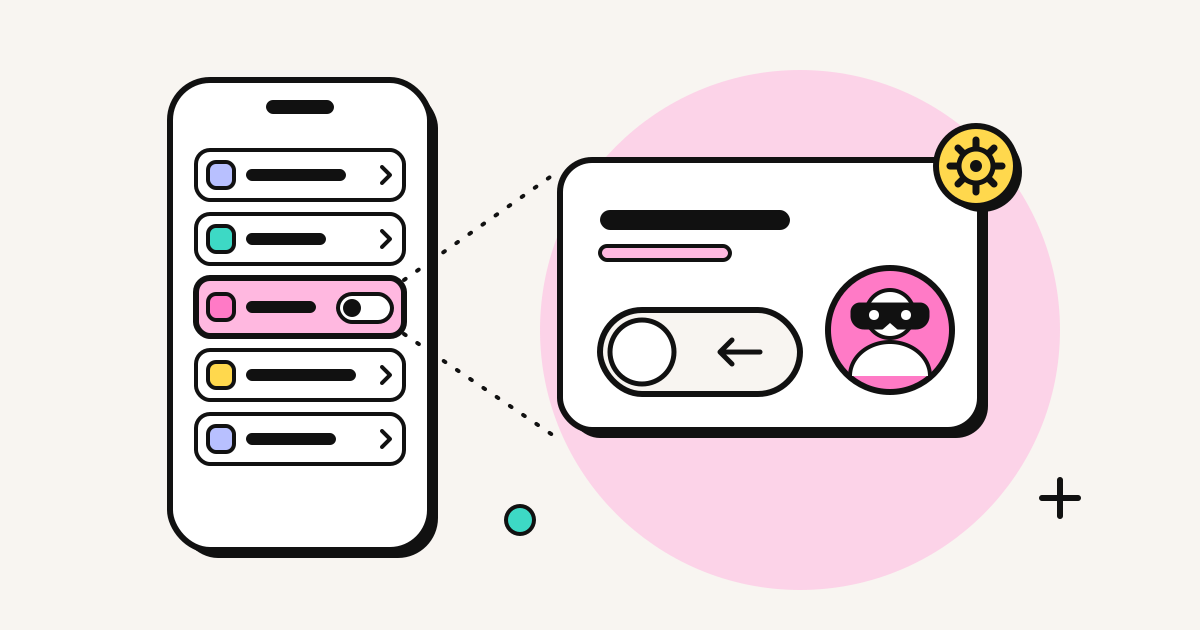
To hide your number on every call from an iPhone, go to Settings > Apps > Phone > Show My Caller ID and turn it off. On iOS 17 or older, the path is Settings > Phone > Show My Caller ID. To hide it for just one call, dial *67 (US and Canada), 141 (UK) or #31# (most mobile networks elsewhere) before the number. If the switch is greyed out, your carrier is controlling the setting. The workarounds are below.
Turn off Show My Caller ID
iOS 18 and iOS 26
- Open Settings.
- Scroll down and tap Apps.
- Tap Phone.
- Tap Show My Caller ID.
- Turn the switch off.
iOS 17 and older
Settings > Phone > Show My Caller ID > off.
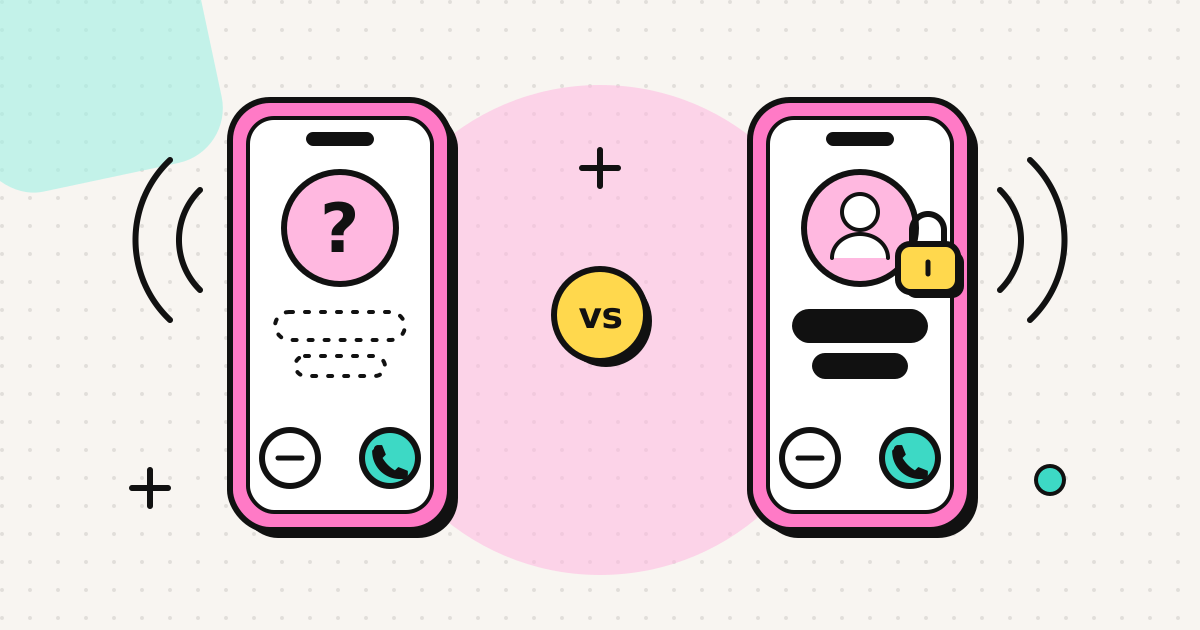
From now on, normal outgoing calls show as "No Caller ID", "Private" or "Withheld" on the other phone.
When the setting is greyed out or missing
This is common, and it's not an iPhone bug. Your carrier controls caller ID presentation on your line, and many carriers don't let you change it from the handset. Apple's advice is to contact the carrier.
You have three options:
- Ask your carrier for permanent caller ID blocking. Most US carriers can turn it on, and some let you do it in their app or account page.
- Use a code for each call (next section). It works on many networks even when the switch is locked.
- Show a different number of your own. See the last section.
Hide your number for one call
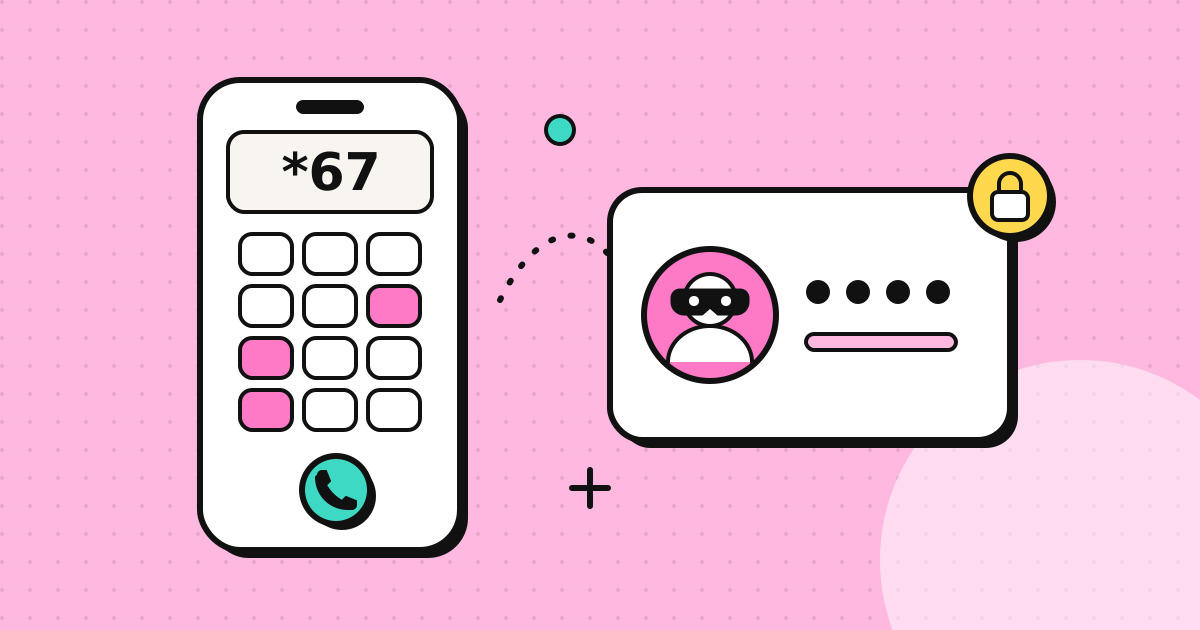
Open Phone > Keypad and type the code immediately before the number:
| Where your SIM is from | Code | Example |
|---|---|---|
| US and Canada | *67 |
*672025550143 |
| UK | 141 |
14102079460958 |
| Most of Europe, Australia (mobile) | #31# |
#31# then the number |
| Japan | 184 |
184 then the number |
Codes come from your carrier's network, so a few carriers don't support them. Test with a friend's phone first. More codes by country are in how to call with No Caller ID.
To show your number for a single call while it's hidden by default: *82 in the US, 1470 in the UK.
Check that it worked
Before you rely on it, call a friend or a second phone of your own and look at the screen. It should say "No Caller ID", "Private" or "Withheld", depending on their phone and carrier. If your number still appears:
- The carrier may be ignoring the handset setting. Try a per-call code instead.
- On an iPhone with two lines (dual SIM or eSIM), the setting can behave differently per line, so test the line you actually call from.
- If you used Wi-Fi Calling, test again on normal mobile signal. Some carriers handle the privacy flag differently on Wi-Fi Calling.
When you're abroad
*67 and 141 are features of your home network, and they don't always work when you're roaming on someone else's network. #31# is the standard GSM code for hiding your number, so it's more likely to be honoured abroad, but that isn't guaranteed. Calls that cross borders also often lose or change their caller ID along the way, so the person may see "Unknown" anyway. Unknown Caller vs No Caller ID explains why.
When your number still shows
Hiding your caller ID doesn't cover:
- Texts and iMessage. These always show your number or Apple Account.
- FaceTime audio and video. These show your Apple Account details.
- Toll-free numbers. 1-800 and 0800 numbers receive your number through billing data.
- Emergency calls. Emergency services always receive your number.
- WhatsApp and other apps. These show your app profile, not your network caller ID.
Hidden calls often go unanswered
iPhones on iOS 26 can screen unknown callers, and Android phones can reject hidden numbers altogether. Many people turn these on to cut out spam, and your withheld call gets caught by the same filter. If you need someone to answer, such as a doctor's office calling you back, a landlord or a recruiter, a hidden number works against you. See how people block No Caller ID calls for what the other person sees.
A different approach: show a number you choose
If the aim is to keep your personal mobile private while still being answered, show another number you own: a work line, a second SIM or eSIM, or a virtual number.
On an iPhone with two lines, you can pick which line to call from before you dial.
For international calls, you can do it from the browser. EzyRing is a browser phone. You verify a number you own once (we call it and you type in a code), and calls go out with that number as caller ID. It doesn't make anonymous calls. It shows a real number you control, which the other person can call back. How it displays depends on the recipient's carrier, especially for a number from the same country as the person you're calling (details). You can check the rate to any country before you call.
Related
Frequently asked questions
Where is Show My Caller ID on iPhone?
On iOS 18 and iOS 26: Settings > Apps > Phone > Show My Caller ID. On iOS 17 and older: Settings > Phone > Show My Caller ID. Turn the switch off to hide your number on outgoing calls.
Why is Show My Caller ID greyed out or missing?
Your carrier controls caller ID presentation on your line and hasn't allowed changes from the phone. It is not an iPhone fault. Use a per-call code such as *67 (US), 141 (UK) or #31#, or ask your carrier to set caller ID blocking on the line.
Does hiding caller ID hide my number in texts and FaceTime?
No. The setting only affects regular phone calls. SMS, iMessage and FaceTime still show your number or Apple Account to the recipient.
How do I show my number again for one call?
If you have hidden it permanently, turn the switch back on, or in the US dial *82 before the number (1470 in the UK) to show it for a single call.
Written by
EzyRing Team
The team that builds EzyRing, a browser phone for calling landlines and mobiles abroad, made in Madrid.
Ready to make the call?
Sign-up is free. You only pay for the minutes you use.
Prepaid, no subscription
Top up from $5. Credit doesn't expire, and nothing renews.
Rate shown before you call
You see the per-minute price before dialling and the running cost during the call.
Caller ID from a number you verify
Verify a number you own once; calls go out with it. Display depends on the recipient's carrier.
Calls aren't recorded. EzyRing is not for emergency calls.